Git Is Not Magic: A Look Inside the .git Folder
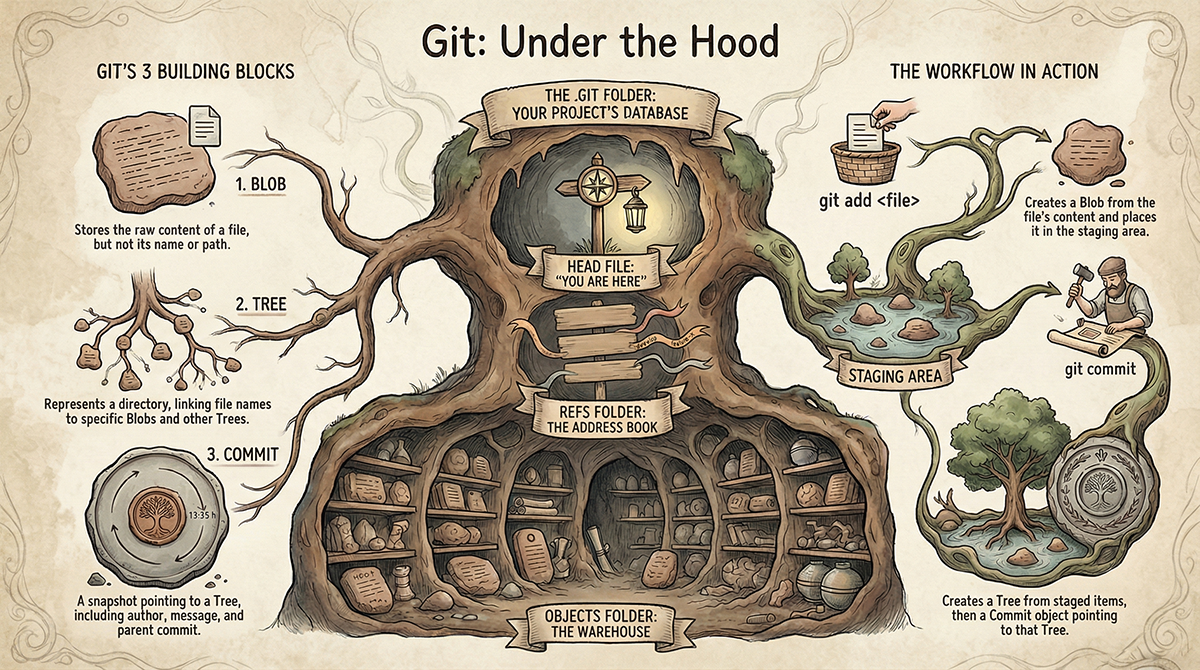
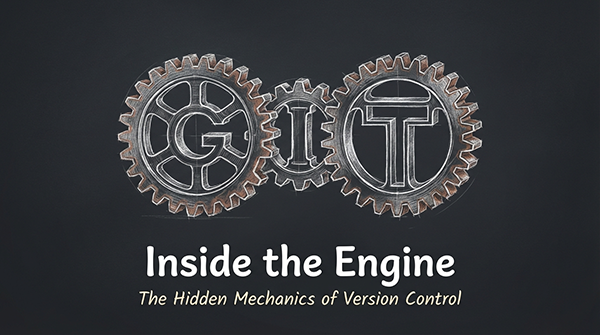
We type git add, git commit, and git push every single day. But honestly, do you know what happens when you hit Enter?
Most of us don't. We just trust that the code gets saved somewhere.
But Git isn't magic. It’s actually just a really smart database. And the best part? You can see exactly how it works if you just look under the hood. So, let’s dig in.
The .git Folder
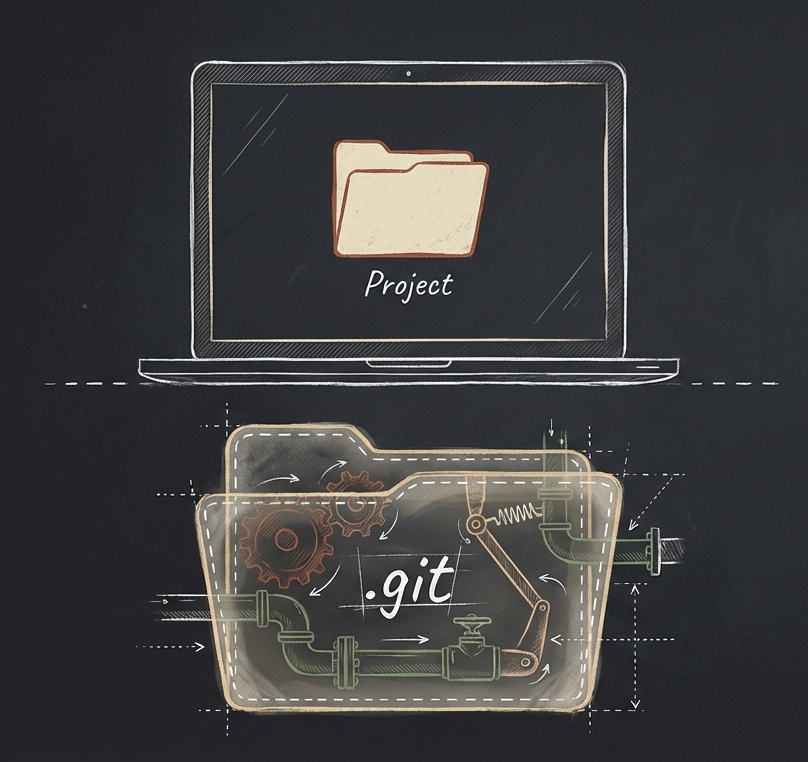
Start a new project. Run git init. What happens? A hidden folder called .git pops up.
That folder is the whole game. Everything, your history, your branches, every single version of your code lives in there. If you delete it? Poof. Your project is just a regular folder again. No history, no undo button.
Think of .git as the hard drive for your timeline.
HEAD: The "You Are Here" Marker
If you open that folder, you’ll find a text file named HEAD. It’s basically a sticky note that tells Git where you are right now.
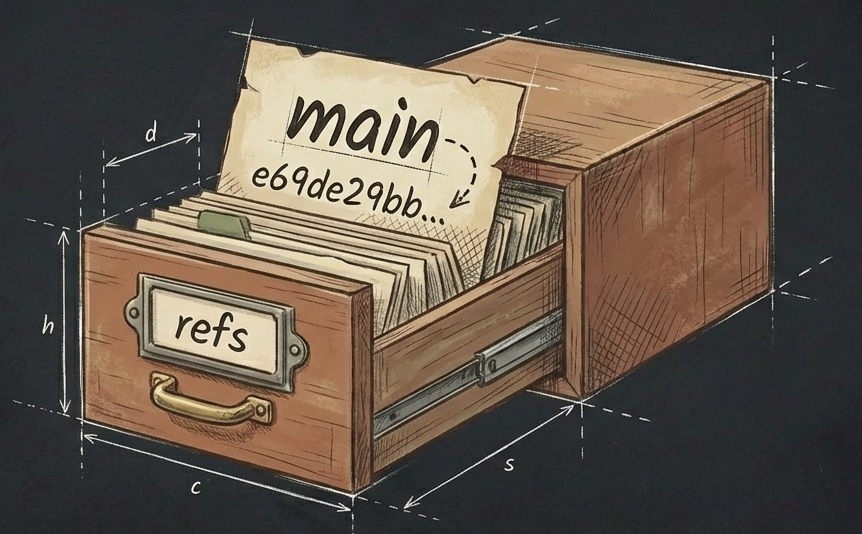
Open it up in a text editor, and you’ll see something like: ref: refs/heads/main
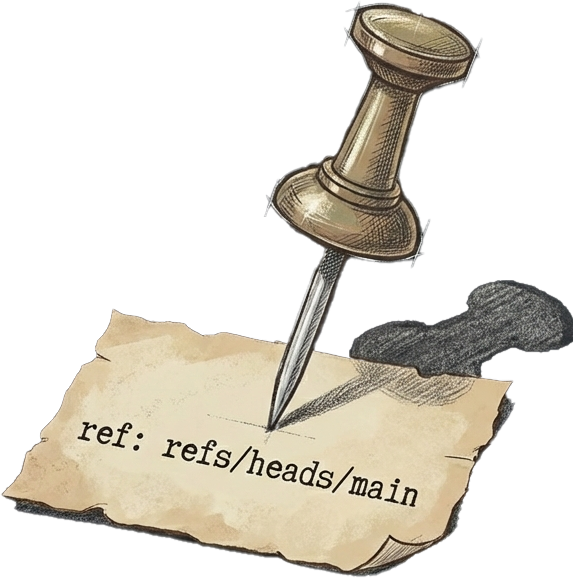
That’s Git’s way of saying, "You are currently standing on the main branch." When you make a commit, this file tells Git exactly which branch should get updated.
The Warehouse (Objects)
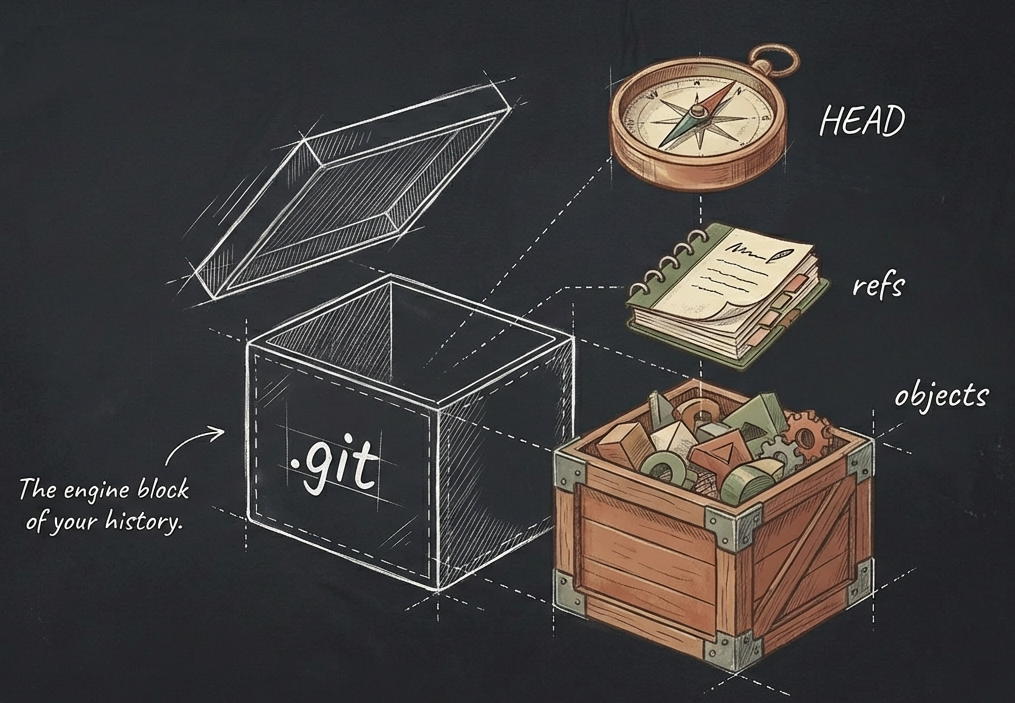
Now, this is where it gets cool. Go into the objects folder (.git/objects). You’ll see a bunch of sub-folders with two-character names like b7, 4a, or ff.
This is the warehouse. This is where your actual files and commits are stored. But Git doesn’t store them by filename. It stores them by Hash.
When you save a file, Git runs it through a formula to create a unique ID (a long string of numbers and letters). It takes the first two characters to make a folder name, and the rest becomes the file name.
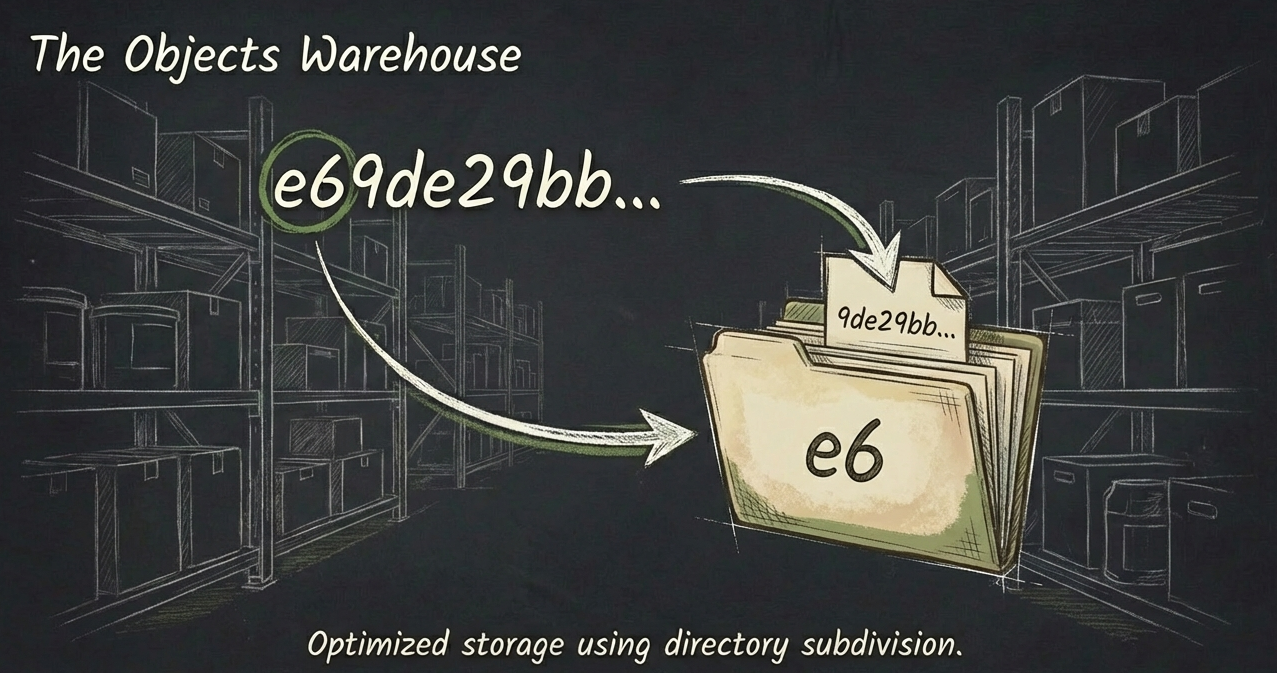
Why? Because it’s efficient.
The Three Lego Blocks of Git
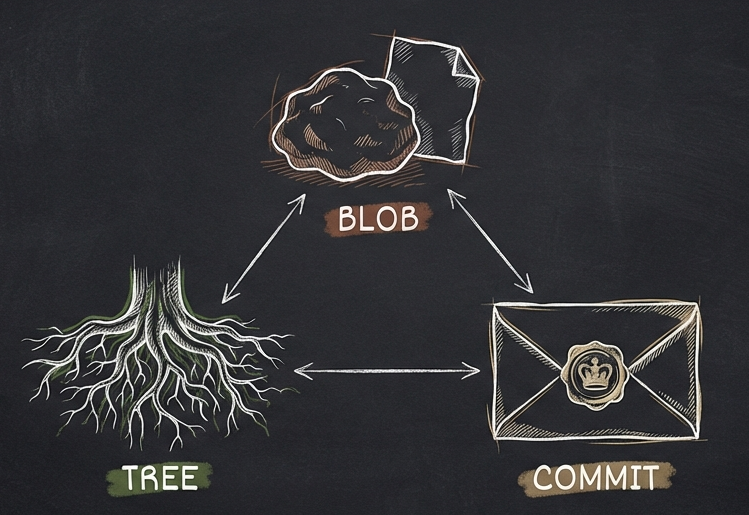
Git is built out of just three simple things (we call them Objects):
The Blob: When you create a file, Git grabs the content and stuffs it into a "Blob." It doesn’t care about the filename here, just the data inside.
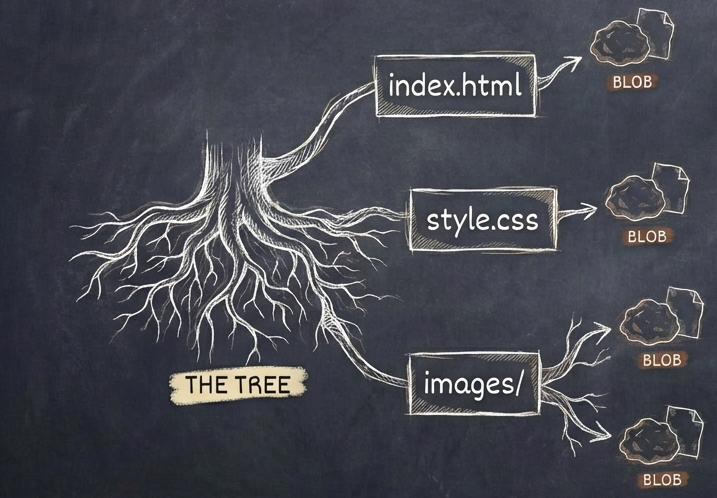
The Tree: This is basically a directory listing. The "Tree" object maps those Blobs to actual filenames and folders. It’s what gives structure to your data.
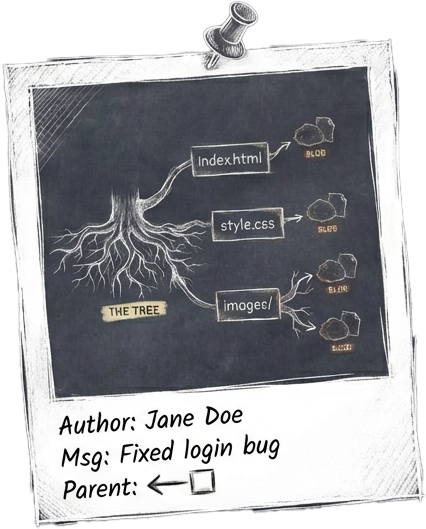
The Commit: The one we all know. This object holds the metadata, who you are, your commit message, and a pointer to the "parent" commit (the one that came before).
So, what actually happens when you commit?
Let’s trace a command.
You type git add file.txt. Git grabs the text inside that file, turns it into a Blob, and tosses it into the database. It’s not "saved" in history yet; it’s just sitting in the staging area.
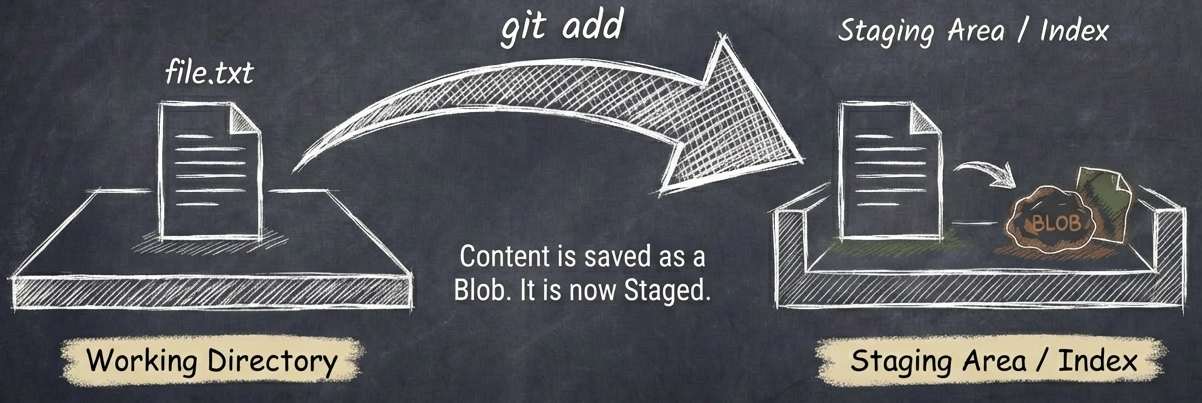
Then you type git commit -m "Fixed bug". Now, Git creates a Tree to organize the files you staged. Finally, it wraps it all up in a Commit object that points to that Tree. It links this new commit to the previous one, and boom, you have history.
The Takeaway
Stop thinking of Git as a "Save" button. Think of it as a camera. Every time you commit, you aren't just saving changes; you are taking a full snapshot of your project's file structure and storing it in that hidden folder.
That’s it. No magic, just a really clever file system.


